One of the challenges many organizations face is finding the right balance between data protection and user productivity.
Recently, I worked on a Microsoft 365 implementation where the objective was clear:
Prevent data extraction from unmanaged devices while still allowing users to remain productive.
We wanted a solution that would work for both internal users and guest accounts, with exceptions handled separately on a case-by-case basis.
Our Requirements
The target experience was straightforward:
- Corporate-managed Windows devices should have full access to the Microsoft 365 application suite.
- Smartphones and tablets protected through Mobile Application Management (MAM) should continue to have a full mobile experience.
- Users working from unmanaged devices should still be able to access information, but only through a controlled browser-based experience with restricted download capabilities.
The Solution
1. Enable Restricted Access for Unmanaged Devices
The first step was enabling the built-in SharePoint and OneDrive controls.
Navigate to:
SharePoint Admin Center → Policies → Access Control → Unmanaged Devices
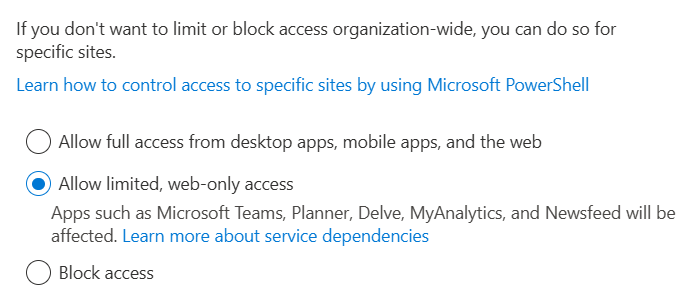
Configure the setting as:
Limited, web-only access
This immediately provides protection for:
- SharePoint Online
- OneDrive for Business
- Microsoft Teams file storage
2. Review the Automatically Created Conditional Access Policies
Once enabled, Microsoft creates two Conditional Access policies in Entra ID.
However, some adjustments were required.
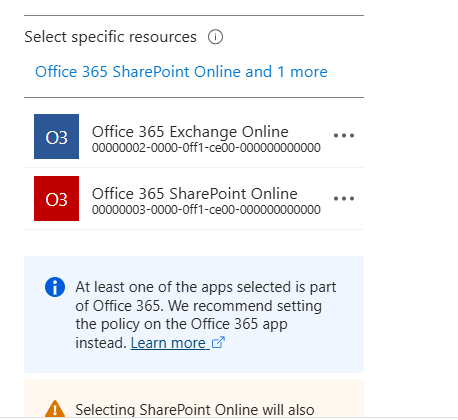
Include Exchange Online
The default configuration focuses primarily on SharePoint and related workloads.
To ensure Outlook was covered as well, we added the Office 365 Exchange Online cloud application to the policy that blocks access from desktop applications on unmanaged devices.
Support Mobile Application Management
A second important modification involved the grant controls.
Without adjustment, users on MAM-protected smartphones would lose access through mobile applications.
To maintain the desired mobile experience, we added:
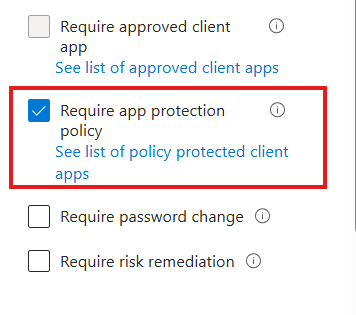
Require app protection policy
as an additional grant control.
This ensures that:
- Unmanaged devices remain restricted
- MAM-protected mobile devices remain fully functional
3. Extend the Experience to Outlook on the Web
SharePoint’s web-only controls do not automatically provide the same browser restrictions for Outlook.
To create a consistent experience, we implemented a dedicated OWA mailbox policy.
1 New-OwaMailboxPolicy -Name "Owa-UnmanagedDevices-ReadOnly"
2 Set-OwaMailboxPolicy -Identity "Owa-UnmanagedDevices-ReadOnly" -ConditionalAccessPolicy ReadOnly
The policy can then be applied to users directly or assigned through a group-based process.
4. Modify the Browser Access Policy
The final step was updating the automatically generated Conditional Access policy used for browser sessions.
Simply add Exchange Online as an additional target resource.
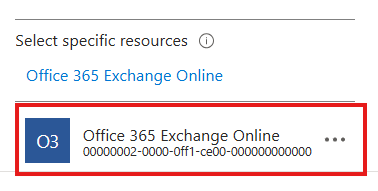
This ensures that the same browser-based restrictions apply consistently across:
- SharePoint Online
- OneDrive for Business
- Microsoft Teams
- Outlook on the Web
Testing Results and Observations
After implementation we performed several validation tests across platforms.
Teams and OneDrive
The behavior is exactly what you would expect.
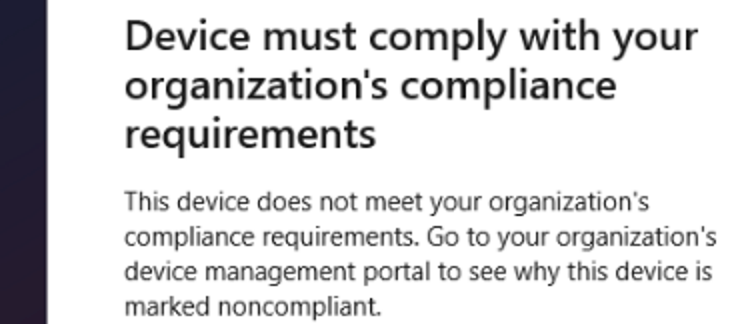
When a user attempts to configure these services through an unmanaged desktop application, access is blocked with a clear message explaining why.
Outlook Desktop and Mobile Apps
The Outlook experience is slightly different.
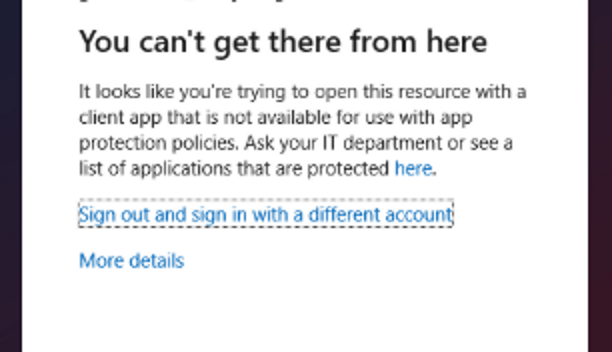
Users may initially appear able to add the account. However, as soon as mailbox synchronization starts, Outlook correctly prevents access and displays an error indicating that the sign-in method is not permitted.
Browser-Based Access
The browser experience is generally very user-friendly.
Users are shown clear banners explaining which actions are restricted and why.
This significantly reduces confusion and support calls.


Teams Web Experience
One interesting observation concerns Teams Web.

When users attempt to download a file, the application currently displays a rather generic “unexpected error” message instead of clearly indicating that the action is blocked by policy.
This is probably an area where proactive user communication can make a big difference.
Final Thoughts
What I like about this approach is that it delivers a strong security posture without forcing an all-or-nothing user experience.
Users remain productive:
- Full access on managed Windows devices
- Full access on MAM-protected mobile devices
- Secure browser-only access on unmanaged devices
Meanwhile, organizations significantly reduce the risk of data leakage through unmanaged endpoints.
It’s a simple combination of SharePoint access controls, Conditional Access, MAM policies, and Exchange Online controls, but together they provide a very effective protection strategy.
Have you implemented a similar approach in your Microsoft 365 environment? I’d be interested to hear about your experiences and any lessons learned.
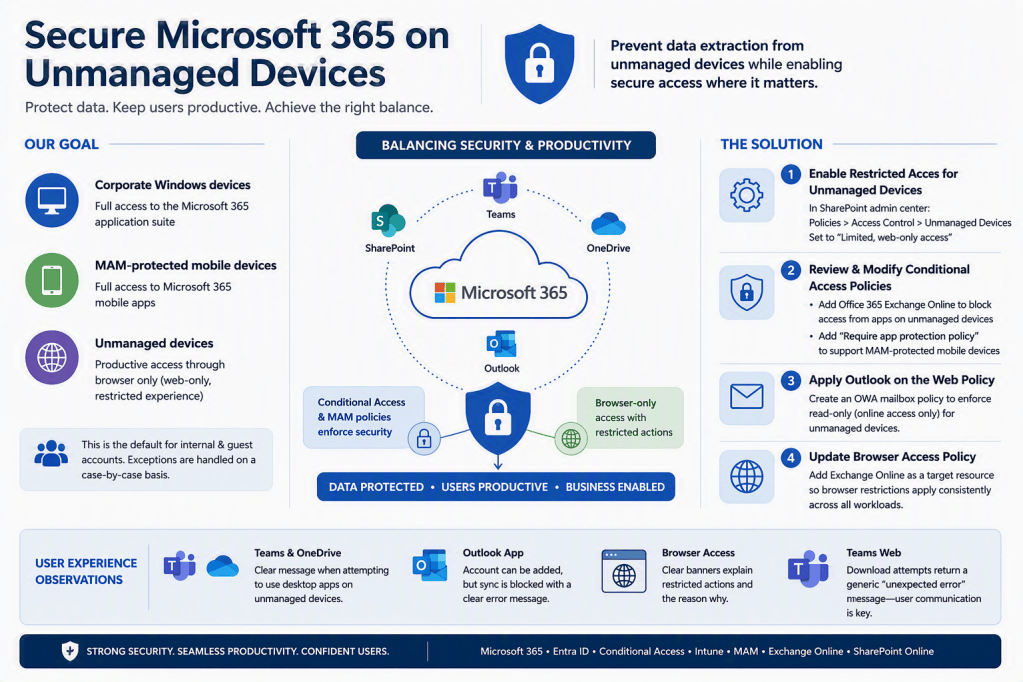
The following diagram puts it all together!.
Enjoy !
 The-league