
Hello,
Everyone is working on improving security in the environment. An important aspect about this is the data security component.
Depending on the content of some Office documents you want to imply more strict rules about how / who can access the specific content.
Enter the information protection labels , nowaydays part of the purview suite.

Now because we currently do not have the required licensing to do automatic labelling we’ll focus here on the manual labelling. So this means the end user needs to select the appropriate label for the specific document.
During our setup we discovered some caveats that I would like to share.
- If you want to use the same category for documents and email and set email to “encrypted only” then this category will not be available in Office.
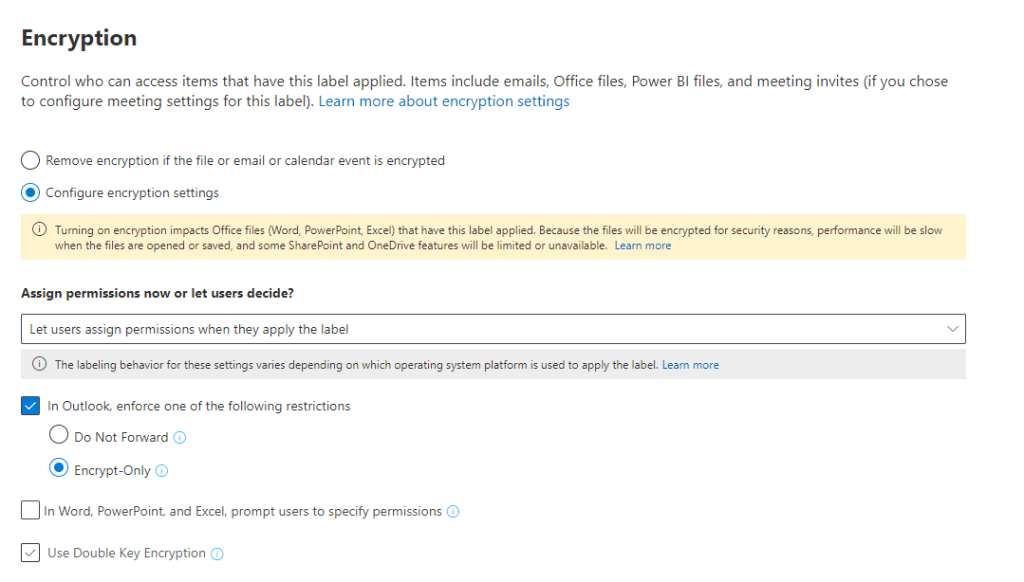
So if you set permissions like this and you do not set encryption for Office documents and do not want the user to be prompted for specific permissions then the label will not be available in Office.
Additional info can be found here :
Apply encryption using sensitivity labels – Microsoft Purview (compliance) | Microsoft Learn
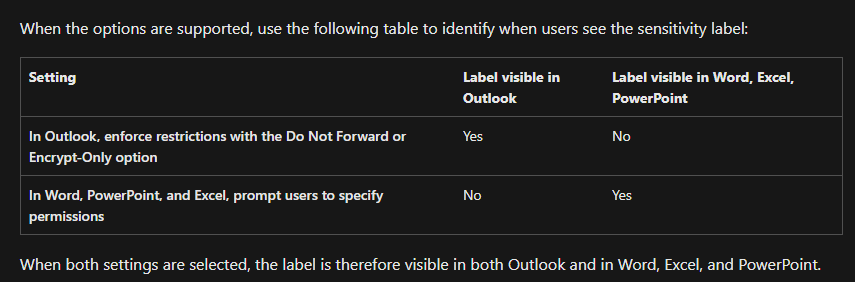
Workaround for this could be to create 2 different labels , one applicable for email setting the encrypt-only setting and one applicable for Office documents specifying no encryption but other required settings.

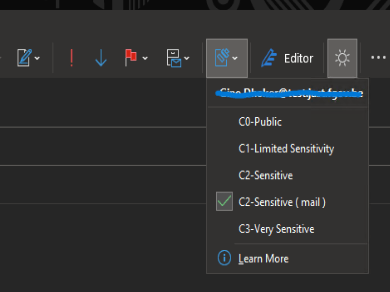
However the regular label ( File , site and Group ) is also seen in Outlook local installation , for the webmail this scenario works.
So in webmail , all good.
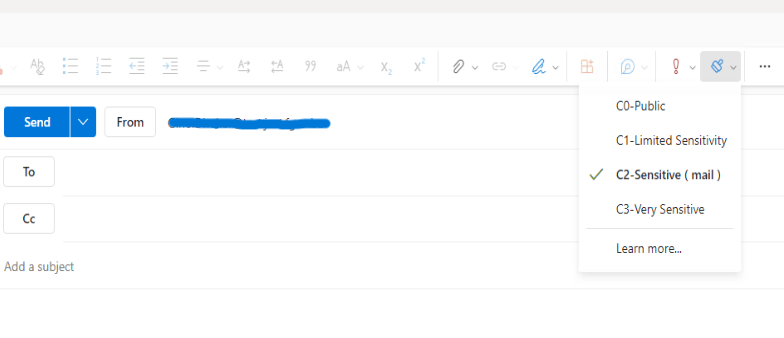
But in outlook 365 , not good.
From an end-user perspective it looks like this:
- You send an encrypted email to an external address. The user gets a similar message like this. Content of the message is encrypted.
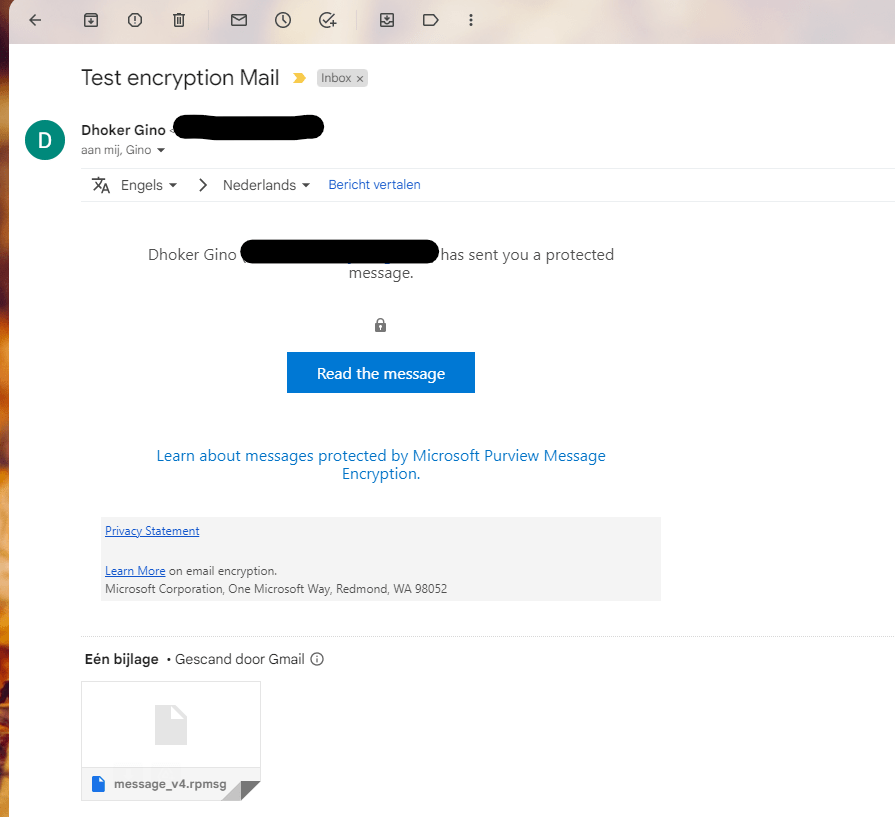
- When the user wants to read the message he/she needs to authenticate , either with a one time passcode or directly with Google.
- When using the assign permissions in the label there are some built-in groups that can be used. Well actually there are 2 groups that are interesting that can be selected.
You can assign rights to “Authenticated Users” or “All users and groups in your organization”
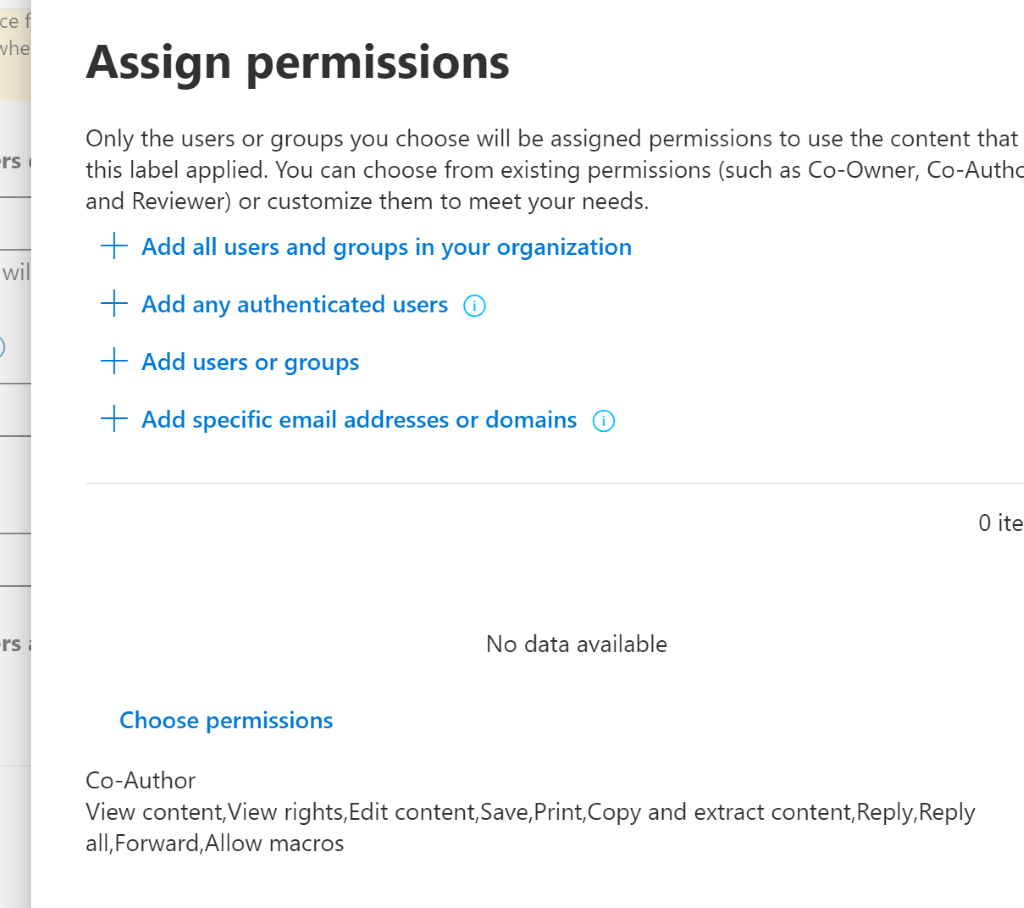
Now there is some info about the two groups but it’s rather unclear.
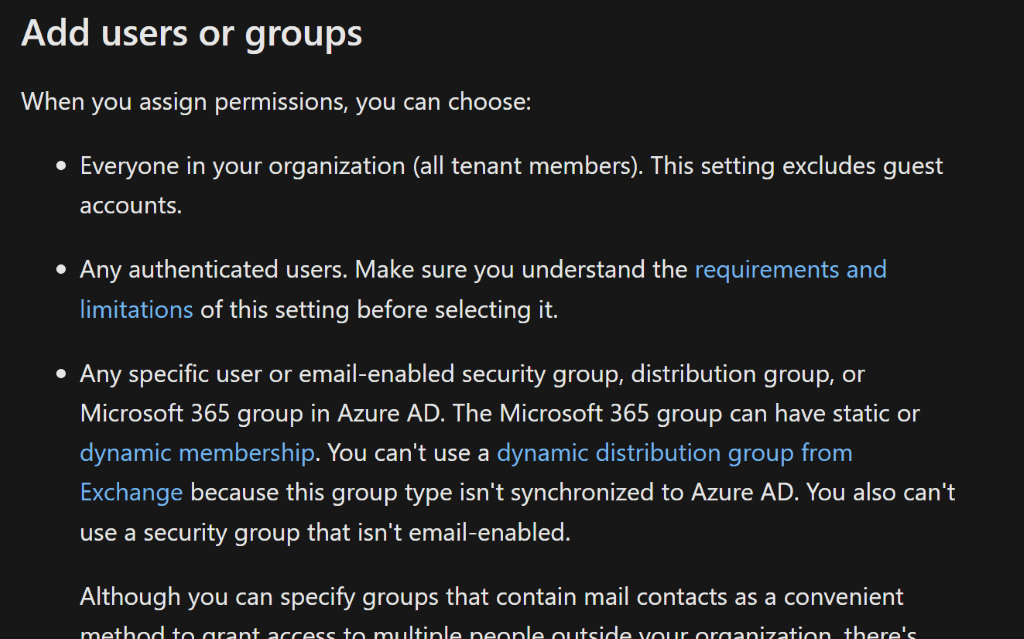
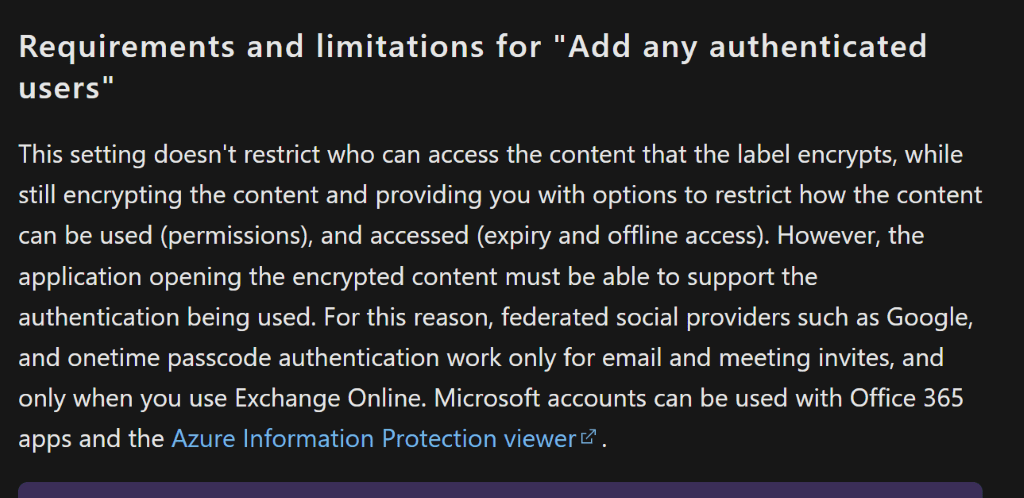
So we ran some tests in order to get a better view.
There is a significant difference between the 2 groups and between an external user with a guest account in the tenant or without a guest account in the tenant.
So I have put results in the following table :
| Group | Internal User | Guest account ( @ gmail ) | External user ( no guest account / Different Azure AD tenant ) | |
| Outlook preview | Authenticated Users | OK | / | No preview |
| All domain users ( no guests ) | OK | / | No preview | |
| Office on the web | Authenticated Users | OK | OK | View only mode |
| All domain users ( no guests ) | NOK | NOK | NOK | |
| M365 Word locally | Authenticated Users | OK | License required | NOK |
| All domain users ( no guests ) | OK | License required | NOK |
So we have got some interesting items here :
If you have internal users with an M365 F3 license –> All domain users is no good as Office on the web is not supported
The “All domain users” permissions is very strict , external users without guest accounts cannot (pre) view any of the content.
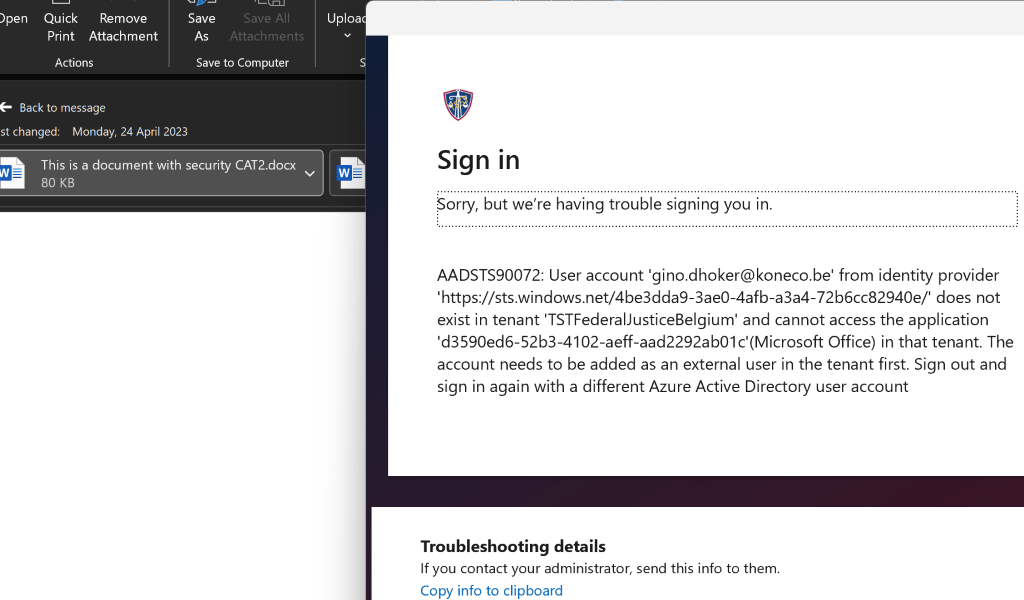
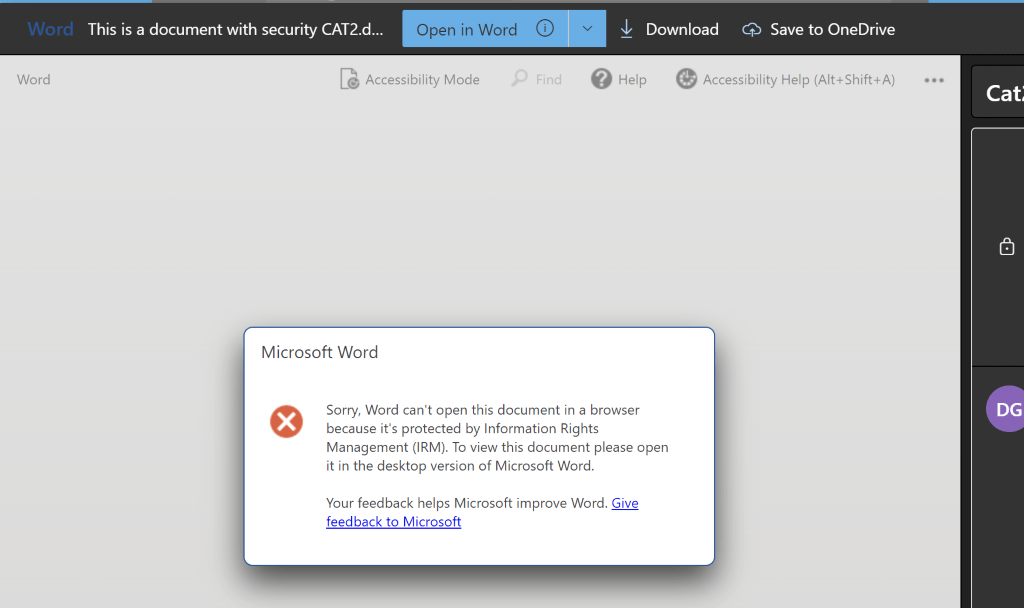
You can however allow an external user read-only access to a document using preview Office on the web with the “Authenticated users” group.
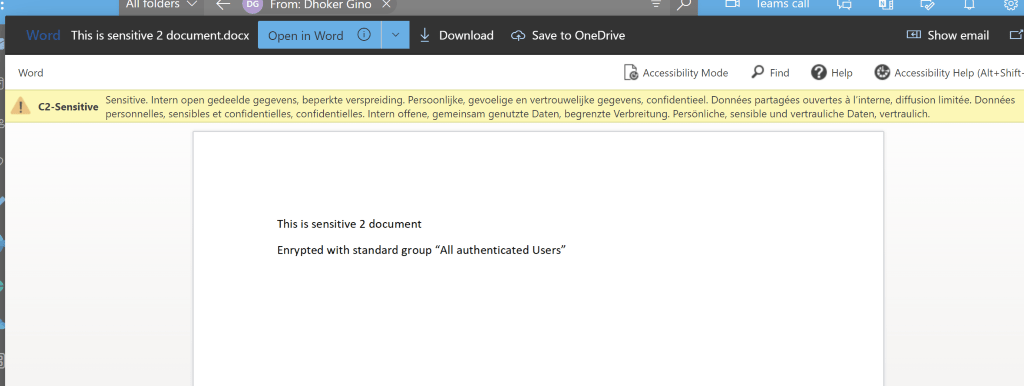
So this provides some valuable options : you can combine encrypt-only and predefined permissions in one label and it can be viewed by external users without requiring guest accounts.
As we are working through the different use case we’ll see what options work best in our environment.
Enjoy.
 The-league